What to say?, just ROFLMAO!
/rofl
Continue reading to see what is funny... /lol
Read more on this article...
Saturday, 18 April 2009


Engineering On WoWCrack ScapeGaming
First what You need to know is that Devices like [Goblin Jumper Cables] are not working.
But there is many good reasons to learn Engineering.
For Engineering mats You need mining, If You don't wanna learn mining You can buy mats from AH but some mats are expensive. Find a friend that have mining and You can start.
There are really good item that You can make from engineering, some of there are:
[Turbo-Charged Flying Machine Control]
You shod read this for faster learning
But there is many good reasons to learn Engineering.
For Engineering mats You need mining, If You don't wanna learn mining You can buy mats from AH but some mats are expensive. Find a friend that have mining and You can start.
There are really good item that You can make from engineering, some of there are:
[Turbo-Charged Flying Machine Control]
You shod read this for faster learning
- Engineering 1-75
- Engineering 75-150
- Engineering 150-225
- Engineering 225-300
- Engineering 300-375
Sunday, 5 April 2009
Atlas
Atlas is a World of Warcraft addon that browse instance maps.

For some reason, Blizzard decided to include beautiful maps for every area of Azeroth except instances. You can still see the area surrounding you in the minimap when you're in an instance, but never the overall layout of the entire dungeon. This is where Atlas comes in. The core of Atlas is basically an image viewer. However, it's the images that come with Atlas that make it worthwhile: a map for every instance in the game. Furthermore, the maps are marked with the locations of bosses and other points of interest. Atlas also includes maps of battlegrounds, dungeon locations, flight points, and outdoor raid bosses.
After installing Atlas, you'll notice a new icon on the minimap that looks like part of a little globe (you can right-click the icon to drag it around the minimap's frame). Click this icon to open up the main Atlas window, which displays the maps and legend. You can alternatively use the slash-command /atlas. The drop-downs at the top of the window enable you to navigate between the maps. You can also drag the Atlas window around the screen. Lock it in place with the little lock button in the upper-right corner.
At the bottom of the legend is a small text-entry field as well as Search and Reset buttons. Type part of a word or name in the box and click the Search button, and the legend's entries are reduced to only those that match your text. Note that the search is performed only on the entries for the current map, not all the entries in the database. While not so useful for instances with only a few entries like Ragefire Chasm, the search comes in handy when there are a ton of entries, like for Blackrock Depths or the AtlasMajorCities plug-in. If you want to get the whole list back, just click Reset.
Download: RapidShare ; MegaUpload
Password: scapegaming-guide.blogspot.com
When you Download Atlas unzip it in WoW Interface Folder (Example: C:\Program Files\World of Warcraft\Interface\AddOns) Read more on this article...
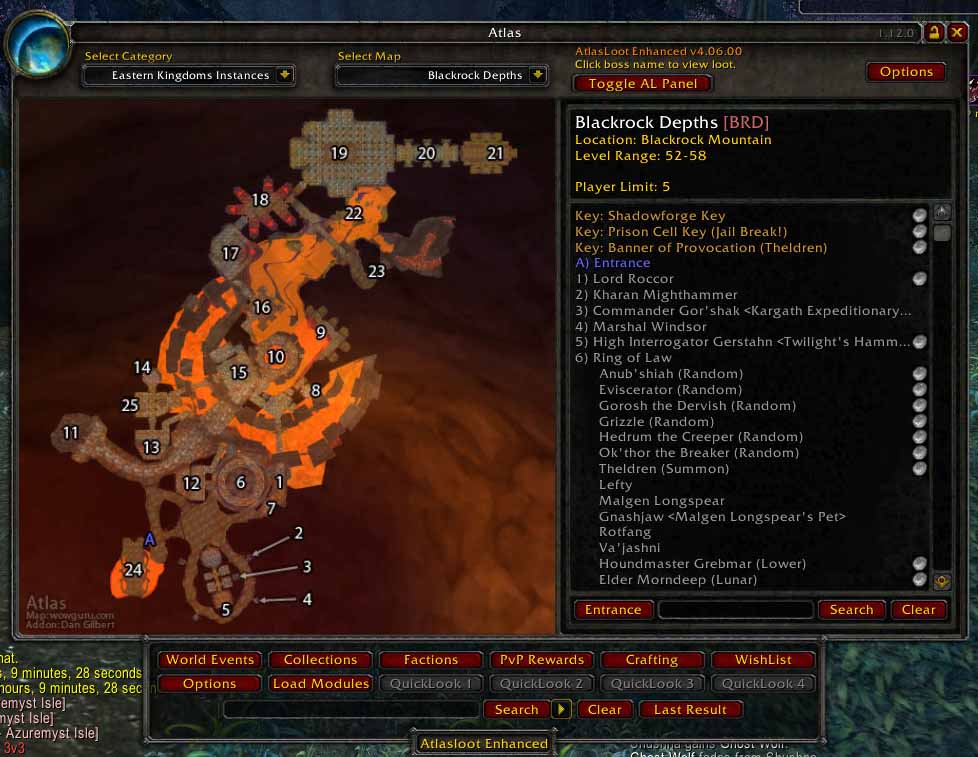
For some reason, Blizzard decided to include beautiful maps for every area of Azeroth except instances. You can still see the area surrounding you in the minimap when you're in an instance, but never the overall layout of the entire dungeon. This is where Atlas comes in. The core of Atlas is basically an image viewer. However, it's the images that come with Atlas that make it worthwhile: a map for every instance in the game. Furthermore, the maps are marked with the locations of bosses and other points of interest. Atlas also includes maps of battlegrounds, dungeon locations, flight points, and outdoor raid bosses.
After installing Atlas, you'll notice a new icon on the minimap that looks like part of a little globe (you can right-click the icon to drag it around the minimap's frame). Click this icon to open up the main Atlas window, which displays the maps and legend. You can alternatively use the slash-command /atlas. The drop-downs at the top of the window enable you to navigate between the maps. You can also drag the Atlas window around the screen. Lock it in place with the little lock button in the upper-right corner.
At the bottom of the legend is a small text-entry field as well as Search and Reset buttons. Type part of a word or name in the box and click the Search button, and the legend's entries are reduced to only those that match your text. Note that the search is performed only on the entries for the current map, not all the entries in the database. While not so useful for instances with only a few entries like Ragefire Chasm, the search comes in handy when there are a ton of entries, like for Blackrock Depths or the AtlasMajorCities plug-in. If you want to get the whole list back, just click Reset.
Download: RapidShare ; MegaUpload
Password: scapegaming-guide.blogspot.com
When you Download Atlas unzip it in WoW Interface Folder (Example: C:\Program Files\World of Warcraft\Interface\AddOns) Read more on this article...
Friday, 27 March 2009
Mob Info
MobInfo provides you with useful additional information about Mobs (ie. opponents/monsters). It adds new information to the game's Tooltip whenever you hover with your mouse over a mob. It also adds a numeric display of the Mobs health and mana (current and max) to the Mob target frame. MobInfo-2 is the continuation of the now abandoned 'MobInfo' by Dizzarian combined with the original 'MobHealth2' by Wyv.

MobInfo collects data whenever you fight a Mob. It starts off with an empty database, which fills up automatically the more you fight and play. The data it collects is used for enhancing the game tooltip and the game target frame. It is also made available to other AddOns (mostly the mob/target health values). The amount of data that gets recorded is configurable through the MobInfo options dialog.
New Feature: It is now possible to show the vendor sell value of an item in the item tooltip (Disabled initially, enable in MobInfo 'Tooltip' options).
Download: RapidShare ; MegaUpload
Password: scapegaming-guide.blogspot.com
When you Download MobInfounzip it in WoW Interface Folder (Example: C:\Program Files\World of Warcraft\Interface\AddOns) Read more on this article...
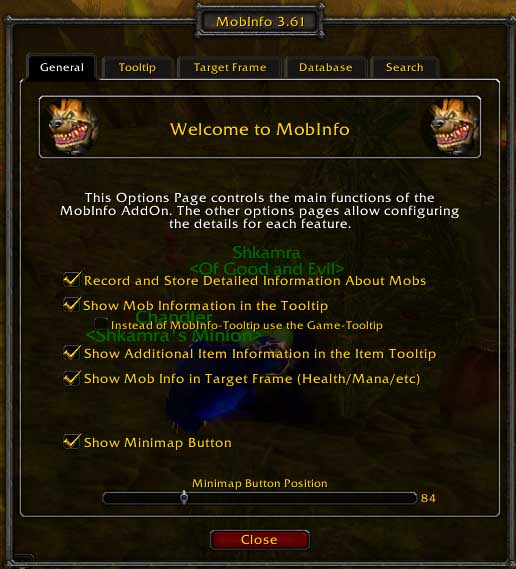
MobInfo collects data whenever you fight a Mob. It starts off with an empty database, which fills up automatically the more you fight and play. The data it collects is used for enhancing the game tooltip and the game target frame. It is also made available to other AddOns (mostly the mob/target health values). The amount of data that gets recorded is configurable through the MobInfo options dialog.
New Feature: It is now possible to show the vendor sell value of an item in the item tooltip (Disabled initially, enable in MobInfo 'Tooltip' options).
Download: RapidShare ; MegaUpload
Password: scapegaming-guide.blogspot.com
When you Download MobInfounzip it in WoW Interface Folder (Example: C:\Program Files\World of Warcraft\Interface\AddOns) Read more on this article...
Atlas Loot Enhanced
AtlasLoot Enhanced is an UI mod allowing for loot tables of bosses to be browsed whenever needed within the game. It can access full item tooltips, show drop rates, allow items to be chat linked and to use the dressing room.

Atlasloot can be used as a stand-alone browser without a host mod or integrated in any map mod (works at the moment with Atlas and AlphaMap.)
Features:
Password: scapegaming-guide.blogspot.com
When you Download AtlasLoot unzip it in WoW Interface Folder (Example: C:\Program Files\World of Warcraft\Interface\AddOns) Read more on this article...
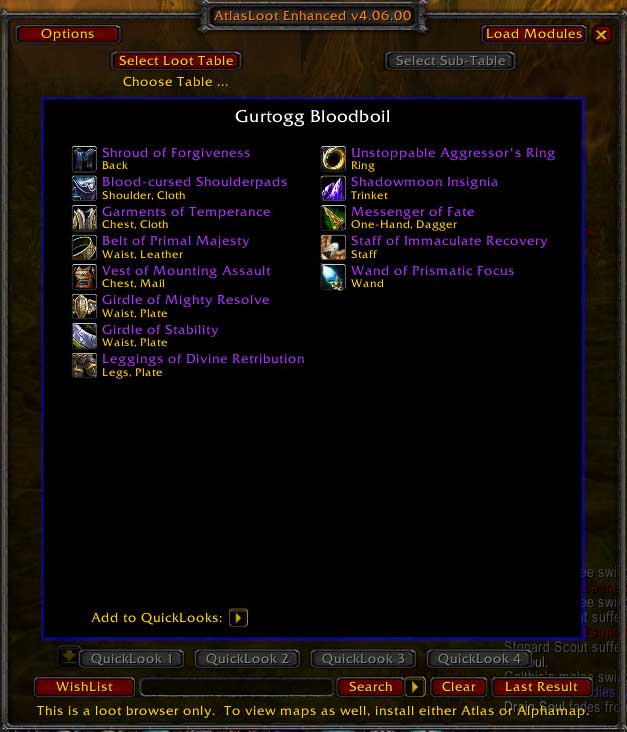
Atlasloot can be used as a stand-alone browser without a host mod or integrated in any map mod (works at the moment with Atlas and AlphaMap.)
Accessed by right-clicking the AtlasLoot minimap button or from the 'Options' button available on any AtlasLoot interface.
- Show Minimap Button: Adds the Atlasloot icon to the Minimap.
- Hide Atlasloot Panel: Removes the Atlasloot Panel from the main Atlas window.
- Safe Chat Links: Can only link items without the (Item Unavailable) tag. Slight chance of disconnect if you have an item in your local cache the server has not seen for a while, but unlikely.
- Enable all Chat Links (USE AT YOUR OWN RISK): Strong chance of disconnects, especially on items your server hasn't seen yet.
- AutoQuery items on loot tables (Disconnection risk): Atlasloot will automaticly query the server for all items on any loot table opened. Chance of disconnects.
- Supress text spam when querying items: This option disables the text, that is shown in your chat window, when you query the server for an item.
- Enhanced Tooltips: If you have Lootlink or ItemSync installed, you can use tooltips generated by them instead of the default tooltip. I recommend the Lootlink tooltips, they handle data not in your local cache well. If an item has (no iteminfo) after it you can only get the tooltip via Lootlink or ItemSync. Be careful with ItemSync, it is unstable on items not seen on your server (just the way ItemSync is).
- Show itemIDs at all times: Adds the itemID to the item tooltip.
- Show Comparison Tooltips: If you have EquipCompare installed it will use it, if not it uses the default Blizzard stuff.
- Notify me when a LoD Module is loaded: [something]
- Load all loot modules at startup: Atlasloot contains several modules. With this option enabled all of the modules, that you have installed, are loaded at startup.
- Make Loot Table Opaque: Makes the loot table background black so you can't see the map underneath.
Features:
- Drop Rates: Appended to the bottom of the tooltip of an item when moused over (if available).
- Dressing Room: Control-click items to show them in the Dressing Room.
- Price Preview: See the prices for token items like PvP rewards.
- DKP systems: Simply edit the file 'dkp.lua' using data from localization.en.lua (for the item ID numbers) and your guild's fixed price values to allow for DKP values to be shown in the tooltip. The stubs of some Lucifron items have been included to get you started and show you how it's done.
- Security: AtlasLoot flags as unsafe any items it detects that may cause you to be disconnected from the server if you try to link it in the chat window. To attempt to get the item information from the server, simply right-click on it. Note: you may get disconnected if the item is not available on your server.
- Instance Loot: All instance loot from every Dungeon (Normal and Heroic) and Raid.
- World Raid Bosses: Highlord Kruul, Azuregos, Dragons of the Nightmare, Doom Lord Kazzak and Doomwalker.
- Factions: WoW Factions and Burning Crusade factions rewards.
- PvP: World PvP Items, Battleground Items including low level items, Honor rewards - Weapons and Armor, Arena Rewards - Weapons and Armor for all seasons.
- Sets: ZG, AQ20, AQ40, Dugeon 1, 2 and 3, Tier 1, 2, 3, 4, 5 and 6 Armor sets, Pre-60 sets, Crafted Sets, Crafted Epic Weapons, Tabards, Rare Mounts, Legendary Items, World BoE Epic Weapons, Heroic Token rewards.
- World Events: Skettis, Abyssal Council, Ethereum Prison, etc.
- Season Events: Feast of Winter Veil, Hallow's End, Brewfest, etc.
- Wishlist: Alt-click on any item to add it to the wishlist, alt-clicking on an item in the wishlist deletes it. There are buttons added to the Atlas panel and the loot browser to open the wishlist.
- Partial Searching: Allows searching the whole AtlasLoot database for an item where you only know part of the name.
- Quicklooks NEW IN 4.06.00: Bind up to four loot tables to 'Quicklook' buttons, allowing you to jump to them with only one click.
Password: scapegaming-guide.blogspot.com
When you Download AtlasLoot unzip it in WoW Interface Folder (Example: C:\Program Files\World of Warcraft\Interface\AddOns) Read more on this article...
Subscribe to:
Posts (Atom)


